


Managing roles and permissions in Preserve365®
This guide explains how to control access to Preserve365 using roles and permissions. By the end, you'll know how to set up your first administrator, assign roles to users and groups, and customise roles to fit your organisation.
License
All Preserve365 customers
How roles and permissions work
A permission defines what a user can see or do in Preserve365.
A role is a collection of permissions. You assign roles to Microsoft 365 users or groups, and they inherit everything that role allows.
Getting started
During set up of Preserve365, you must nominate an administrator. This user is responsible for configuring and managing access to Preserve365.
To nominate an administrator, provide your Preservica representative with the user’s Microsoft 365 email address.
How to manage roles and permissions
Prerequisites
To manage roles and users in Preserve365, you must have the Role Management permission.
Open the Admin app (Preserve365 Admin), then navigate to Role permissions.
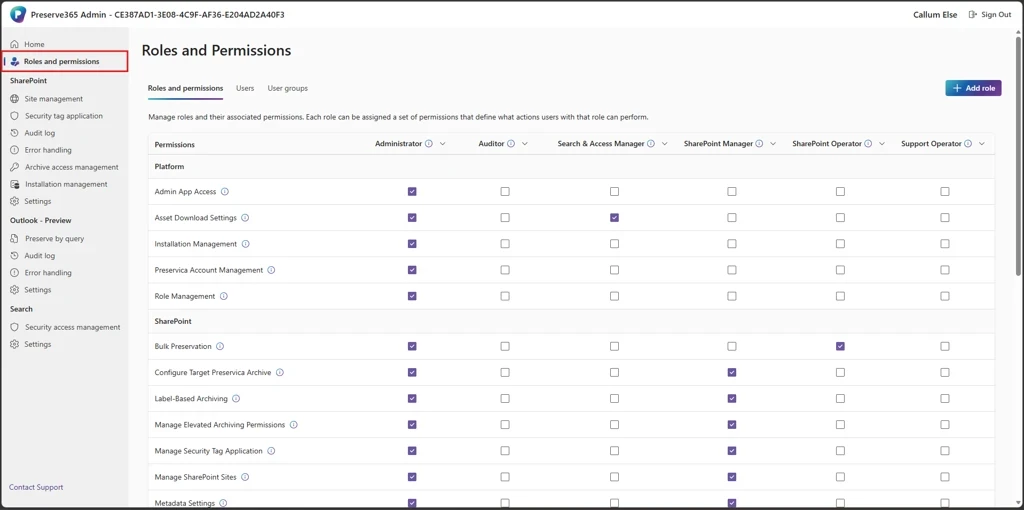
Assign a role to a user or group
-
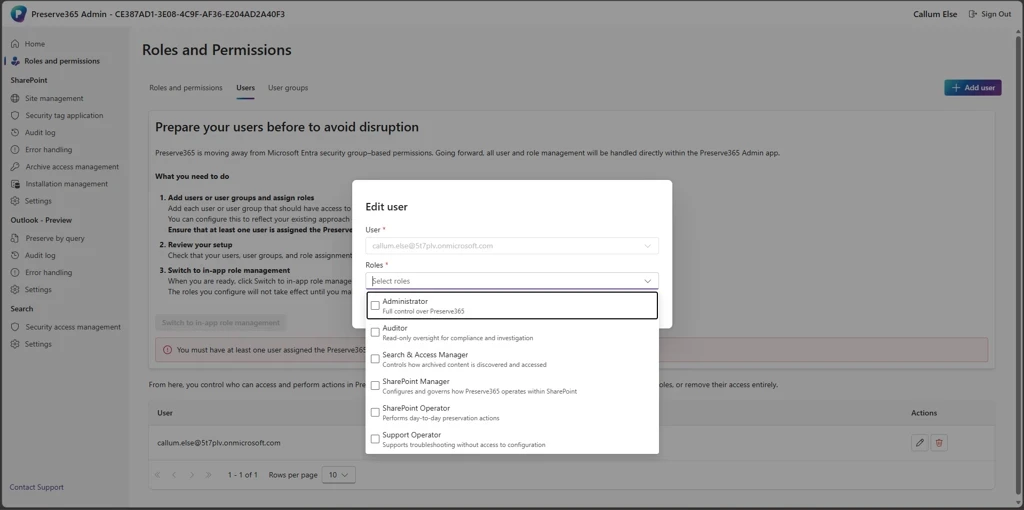
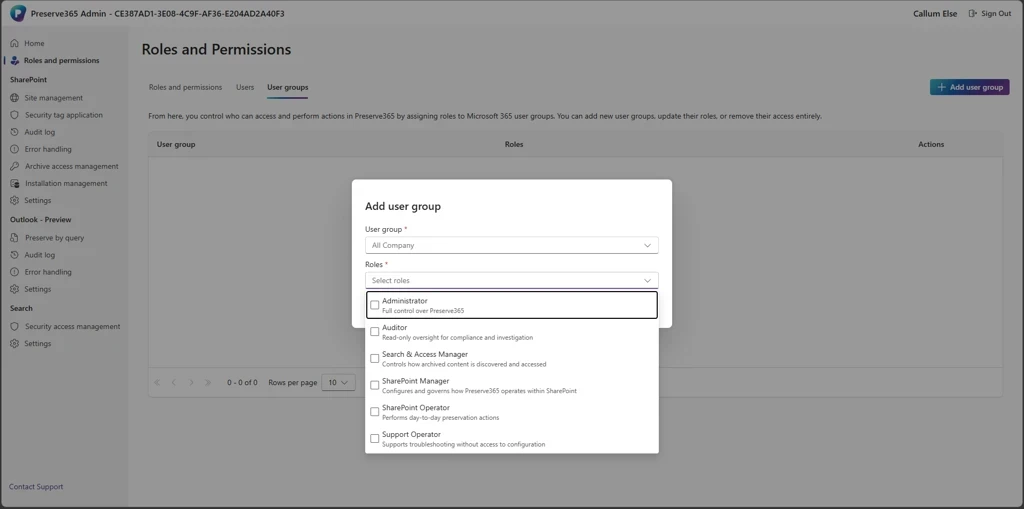
Go to Users or User groups.
-
Select the Microsoft 365 user or group you to grant a Preserve365 role.
-
Choose a Preserve365 role from the available options.
-
Select Save.
The user or group immediately inherits all permissions included in that role.
Create, edit, or delete a role
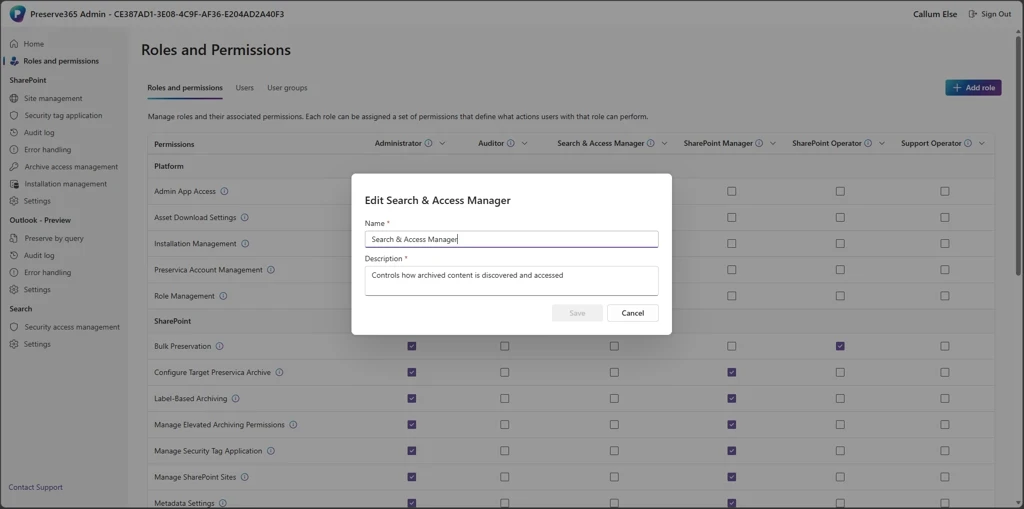
From Role permissions, you can:
-
Create a new role and give it a name and description
-
Edit an existing role's name, description, or permissions
-
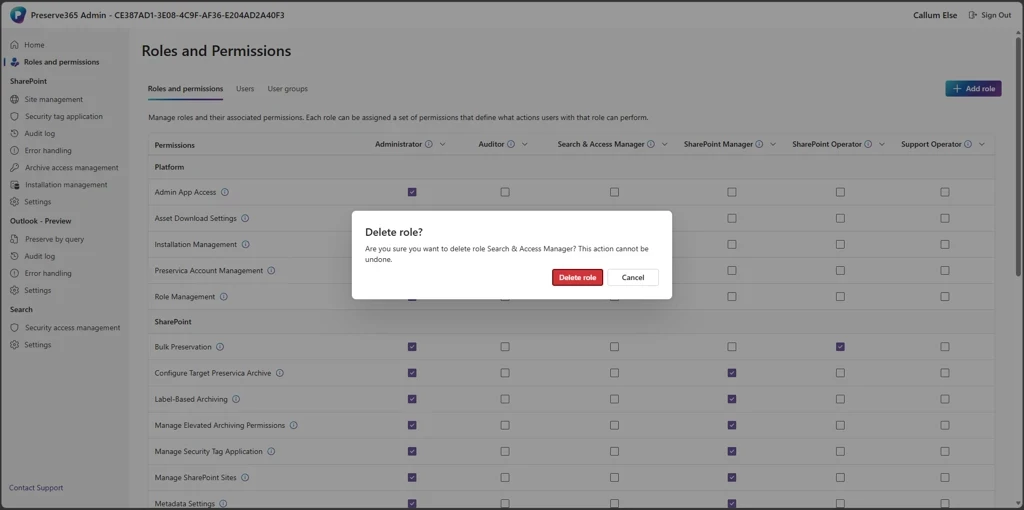
Delete a role that's no longer needed
⚠️ A role can't be deleted if it's currently assigned to users or groups.
Change what a role allows
-
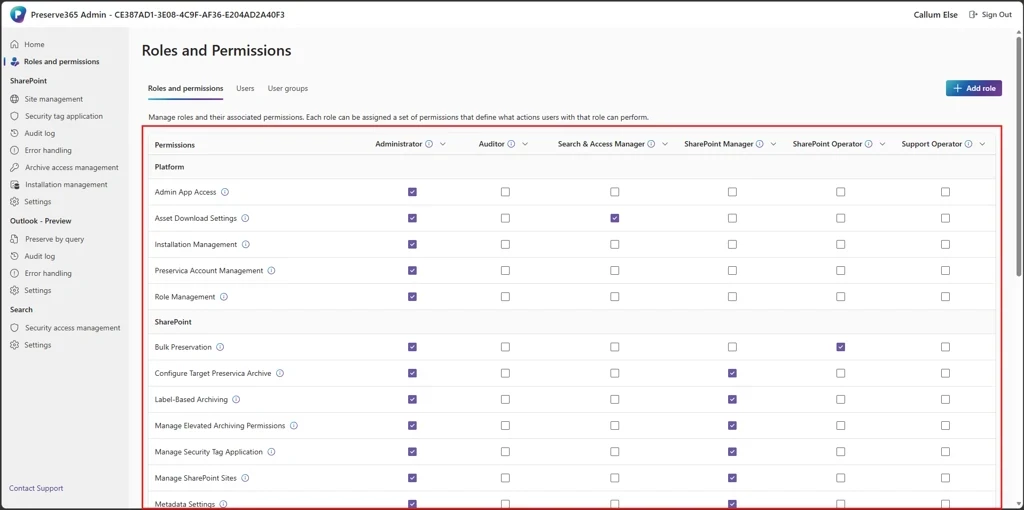
Go to Roles and permissions.
-
Check a permission under a role to grant it, or uncheck it to remove it.
-
Changes apply immediately to all users and groups assigned to that role.
Default roles
Preserve365 includes ready-to-use roles to help you get started. These can be edited to suit your organisation or deleted entireley.
| Role | Description | Key permissions |
|---|---|---|
| Role Management Administrator | Responsible for managing who has access to Preserve365 and what they are allowed to do. | Manage Roles |
| Administrator | Administrators can connect systems, configure platform settings, and manage preservation policies and features. | All configuration and management permissions (excluding role management) |
| SharePoint Manager | Configures and governs how Preserve365 operates within SharePoint. | Manage SharePoint Sites, Label-Based Archiving, Retention and Disposition, Stubbing, and more |
| SharePoint Operator | Performs day-to-day preservation actions. | Preserve Copy, Preserve Move, Bulk Preservation (SharePoint) |
| Search & Access Manager | Controls how archived content is discovered and accessed. | Asset Download Settings, Unified Search Management, Manage Security Tag Permissions |
| Auditor | Read-only oversight for compliance and investigation. | View SharePoint Sites, Audit Logs (SharePoint and Outlook), View Security Tag Permissions |
| Support Operator | Supports troubleshooting without access to configuration. | View SharePoint Sites, SharePoint Error Handling, Audit Logs, View Security Tags |
Custom roles
If the default roles don't fit your organisation's structure, you can build your own. Users with the Role Management permission can create new roles, assign any combination of permissions, and tailor access to specific responsibilities.
What to expect
Once roles are assigned, users can sign in to Preserve365 and access only what their role allows. Changes to a role's permissions apply immediately to everyone assigned to it — no need to reassign.