
Change thumbnail

  • October 20, 2021
  • 2 replies
  • 423 views

The Change thumbnail function allows you to apply an external image as a thumbnail for a folder or asset in Starter. The thumbnail applied to the folder is only visible in the Public portal and if the folder is set to public.

Note: Supported image formats for thumbnails are png, jpeg and gif. The image must be 10MB or less.

The steps below apply to folders but the same can be applied to assets.
1.1    Login to Starter using your email address and Password.
The Home screen will display.
1.2    Select the folder that you want to update the thumbnail for.
1.3    Right-click on the folder and select Change thumbnail.
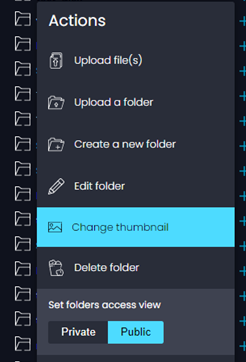
 

1.4    The Change folder thumbnail screen will display. Click Choose file to open your local drive and select the image you want to use.
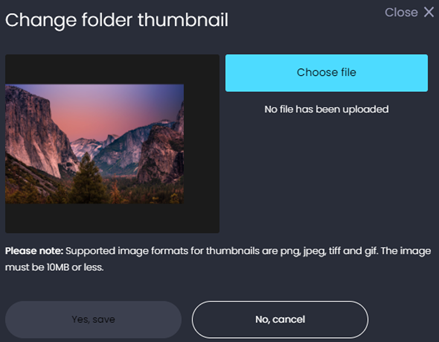


1.5    Then click Yes, save.
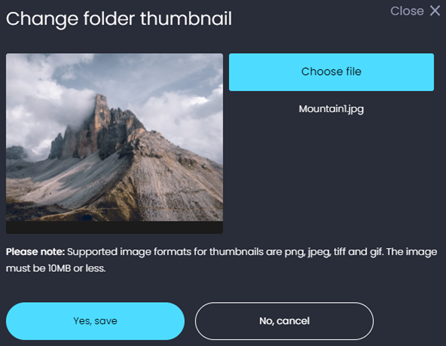


1.6    A confirmation message will appear.



2 replies

Forum|alt.badge.img+1
  • Participating Frequently
  • July 29, 2026

My thumbnails won’t change - I’ve tried several over the past few weeks and none of them will update when I attempt to change them. They’ve all been jpeg 10MB or less. 


Forum|alt.badge.img+7
  • Known Participant
  • July 31, 2026

My thumbnails won’t change - I’ve tried several over the past few weeks and none of them will update when I attempt to change them. They’ve all been jpeg 10MB or less. 

I had an issue recently and it seemed to be caused by a large backlog of thumbnailing requests and the manual assigning of the thumbnail was being timed out due to the backlog. 

I’ve managed to change a few thumbnails this morning without problems so it might be worth trying again, or contacting support.