




Edition
Optical Character Recognition (OCR) is available as part of the Starter Plus AI edition and above. Click here for more details. Contact your Customer Success Manager or Support if you are interested in using this feature.
OCR will be available for EoP customers in a future EoP Release.
With the v8.4 release, the OCR Settings page in Classic is visible for reference but can no longer be changed.
Introduction
OCR can make the text within images searchable .
When included as part of an ingest or enrichment policy, OCR converts an image of printed text into searchable data in your Preservica archive. As of November 2025, English is the default language for OCR in New Generation.
Note: OCR in Preservica uses the Tesseract optical character recognition engine and is intended to extract the text from high-quality images of type-written material. It is not intended for handwriting recognition.
An AI disclaimer must be agreed to before the feature can be configured.
At this time, OCR can only be applied on content as it’s ingested, it is not possible to apply OCR on content already in the archive
You can layer both OCR and PII detection to identify digitized images that have PII when they are being ingested.
The extracted text can be accessed via API or through the New Generation explorer screen or search by adding the Metadata → XIP → “Full text (Partial March)” field to the Grid View. It doesn’t display nicely if very long but you can download search results to better see it in a CSV.
Permissions
You need to have the Manager or Config manager role to set up the OCR enrichment policy.
You need Read Content permissions on any content you are evaluating with the OCR enrichment policy.
Before you start
OCR in Preservica works with the following file formats and their associated PUIDs:
-
Tiff/EXIF: fmt/353, x-fmt/387
-
JPG2000: x-fmt/392
-
PDF: fmt/16, fmt/17, fmt/18, fmt/19, fmt/20
Set up
-
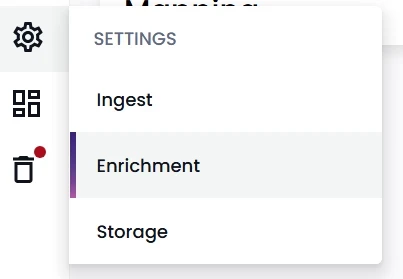
Navigate to the Settings > Enrichment page
-
Select the Edit policy button
-
Select “On ingest” as your preferred Mode
-
Acknowledge the AI disclaimer
-
Create a Profile
-
Name your Profile
-
Select the OCR option
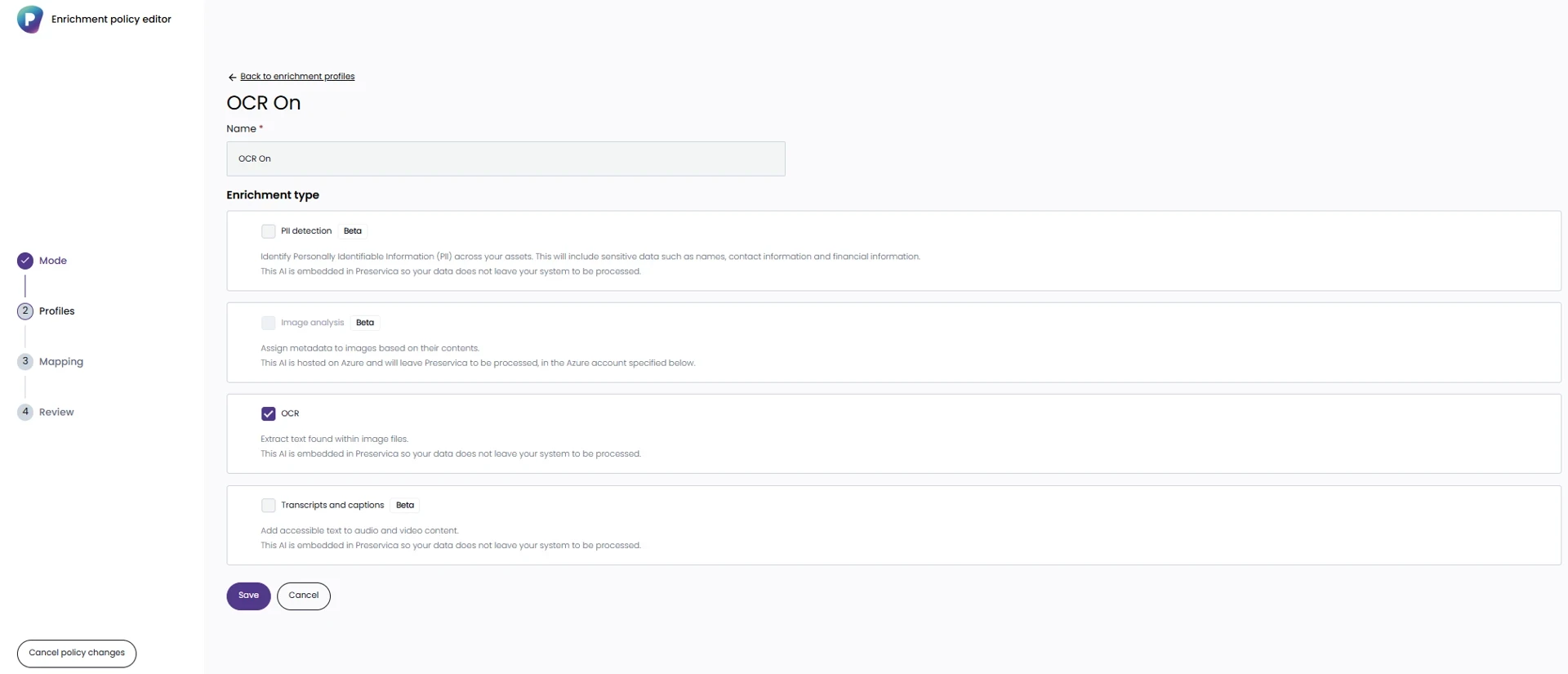
Image showing the Enrichment policy editor - Profiles screen
-
-
Press the Save button and then the Next button to move to the Mapping page
-
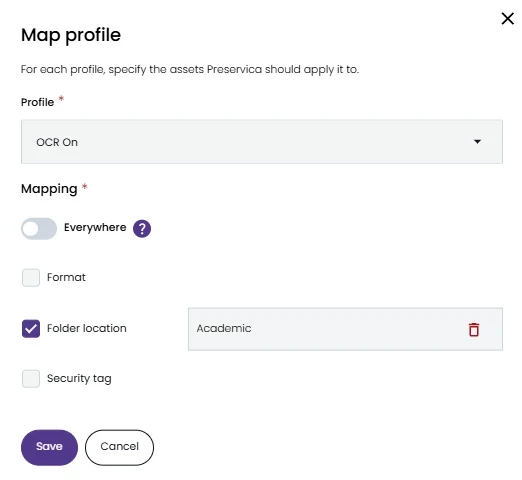
Complete the Mapping step:
-
Select the OCR profile from the Profile dropdown list
-
Select the options for Mapping your Profile:
-
Select “Everywhere” if you want OCR applied to all newly ingested content within your system
-
Select a specific Folder location if you want OCR applied only to content ingested in that location
-
Select a specific security tag or tags if you want OCR applied only to content ingested with that security tag
-
These options can be used together to narrow how and where your OCR policy is applied. In the example below, the OCR Profile has been mapped to content ingested into the Marketing folder if it has the security tag “open” or “public” - all other content will be ignored by the OCR tool.
-
-
c. Press Save and then the Next button to review your enrichment policy
-
Review your policy set-up and select Apply policy to save your changes
-
A notification message will pop up confirming that your policy has been saved and will be applied to your archive
-
Considerations
The OCR process using Tesseract is a very resource intensive activity that may affect system performance, so please follow these guidelines when running:
-
OCR requires high quality images with printed text. Low quality images or handwritten text will produce inferior results or none at all.
-
At this time, OCR can only be applied on content as it’s ingested, it is not possible to apply OCR on content already in the archive
-
By its nature the OCR process can take a significant time to run, all images need to be converted, evaluated and scanned. Therefore it can take multiple days to run but this will vary depending on the number and quality of source files.
-
It is not currently possible to search for text within an image that has had OCR applied to it
We are planning a further enhancement which will support this