




Edition
PII Detection is available as part of the Starter Plus AI edition and above. Click here for more details. Contact your Customer Success Manager or Support if you are interested in using this feature.
PII will be available for EoP customers in a future EoP Release.
Introduction
Preservica New Generation can now automatically detect and apply Personally Identifiable Information (PII) metadata on ingest (and post ingest). This will help ensure compliance with open data and privacy laws and help users make informed decisions on how records are shared.
Preservica’s PII detection is done using a fully-embedded AI tool, Microsoft Presidio, so that your content never leaves your system. You can select which PII types are identified and added as metadata - giving you flexibility as to what types of PII you want identified and captured.
Multiple Enrichment profiles can be created and mapped to specific collections and content - allowing you to only apply PII detection on the content you need.
After enabling and configuring your PII enrichment policy, Preservica searches the full text index of all specified content and any PII found is added as a metadata field within a dedicated PII Analysis schema. This tool can be used to identify PII in your content on ingest or after ingest.
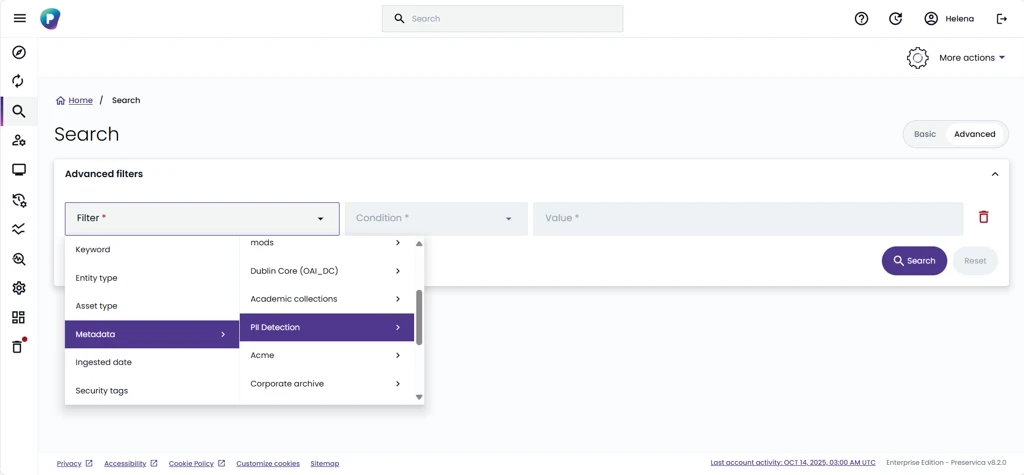
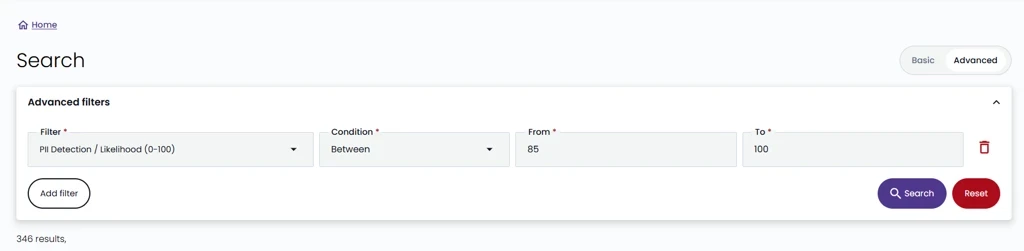
You can also use Advanced search to find content with PII at scale, by filtering on metadata values
Permissions
You need to have the Manager or Config manager role to be able to set up the PII Detection feature.
You need Read Content permissions on any content that you want the tool to review, either during ingest or while re-evaluating your policy.
Set Up
Step 1: Configure your Enrichment policy
Navigate to Settings > Enrichment and select the Edit Policy button. Follow the below steps to configure your policy.
Step 1.1 Select the ‘On ingest’ mode
The first time you select this mode, you will be asked to consent to an AI disclaimer. This is a generic disclaimer to ensure you are aware of any potential risks. In the case of PII detection, Preservica uses a fully embedded AI tool so your content never leaves the system.
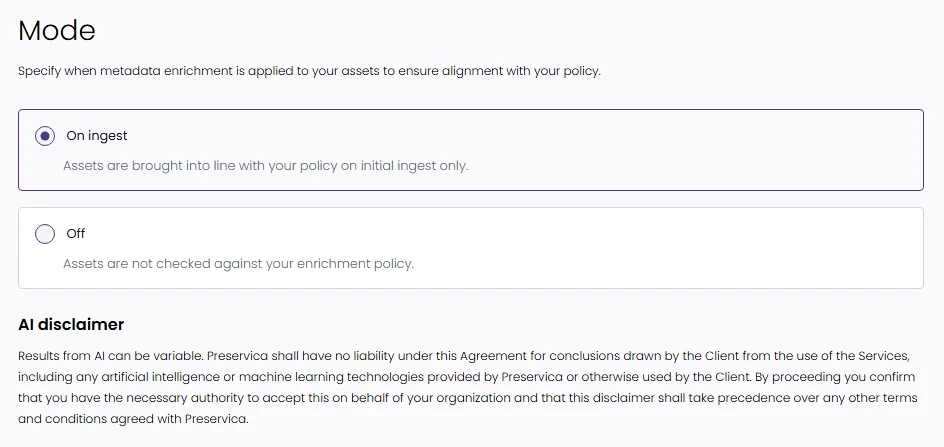
Step 1.2 Create one or more profiles
Select the Create profile button. Give your profile a Name (required). Tick the PII detection (Beta) enrichment type check box. This will then display the PII detection types section (new for v8.3), where you can either:
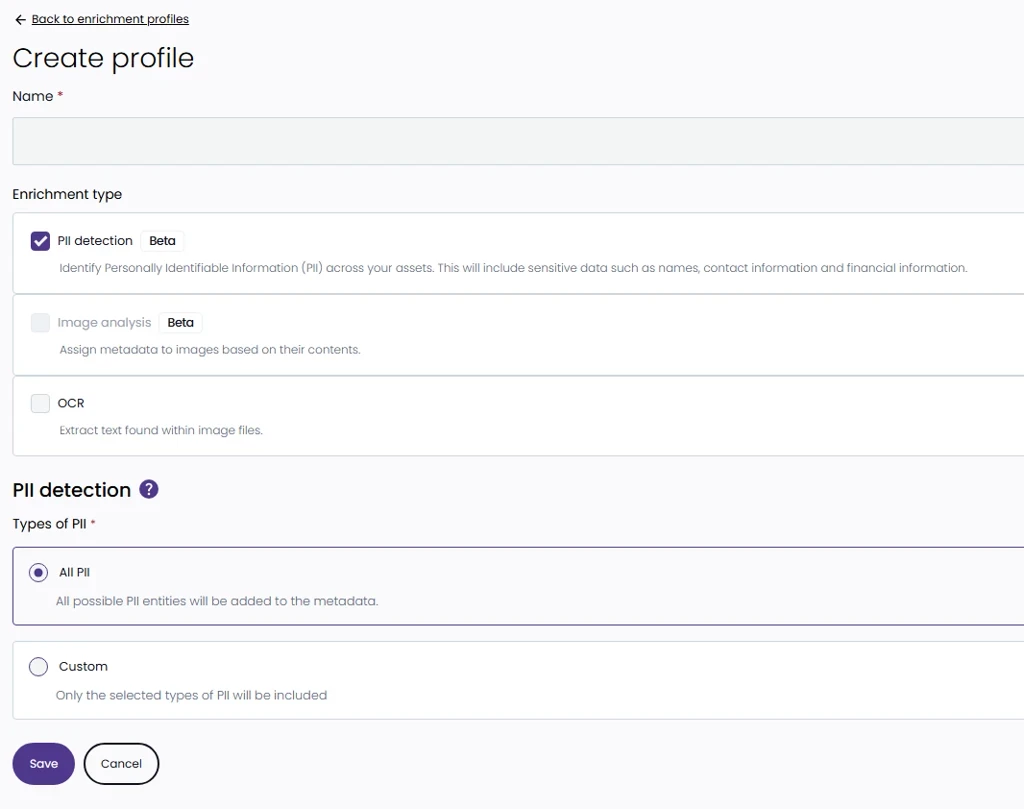
-
Choose All PII: All possible PII entities will be added to the metadata, or
-
Choose Custom: Only the selected types of PII will be included. The custom types of PII are:
-
Credit card
-
Crypto
-
Date Time
-
Email Address
-
IBAN code
-
IP address
-
NRP
-
Location
-
Person
-
Phone number
-
Medical License
-
URL
-
US Bank number
-
US Driver license
-
US ITN
-
US Passport
-
US SSN
-
UK NHS
-
UK NINO
-
You can search within the PII options list as well:
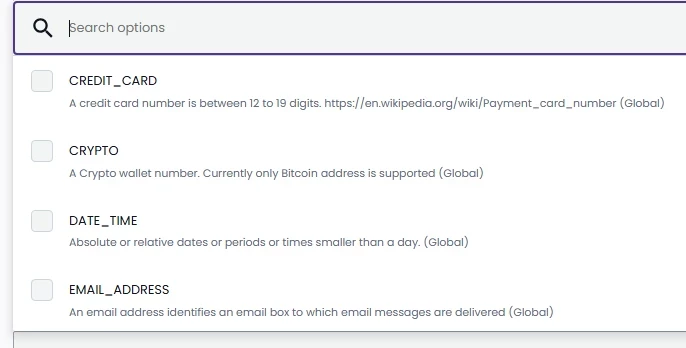
Save your profile.
You may want to create a “PII on” profile that you will map to content where you want detection to run. If you have content you want to make sure never gets checked for PII, you can create an explicit “PII off” profile for that as well.
Step 1.3 Map your profile(s) to your archive
Choose how you want your profile(s) to apply to your archive using folder location and/or security tag. This allows you to select specific folders (collections) or tags to which you wish to apply PII or not apply PII. If set to Everywhere then all ingested content will have PII detection applied.
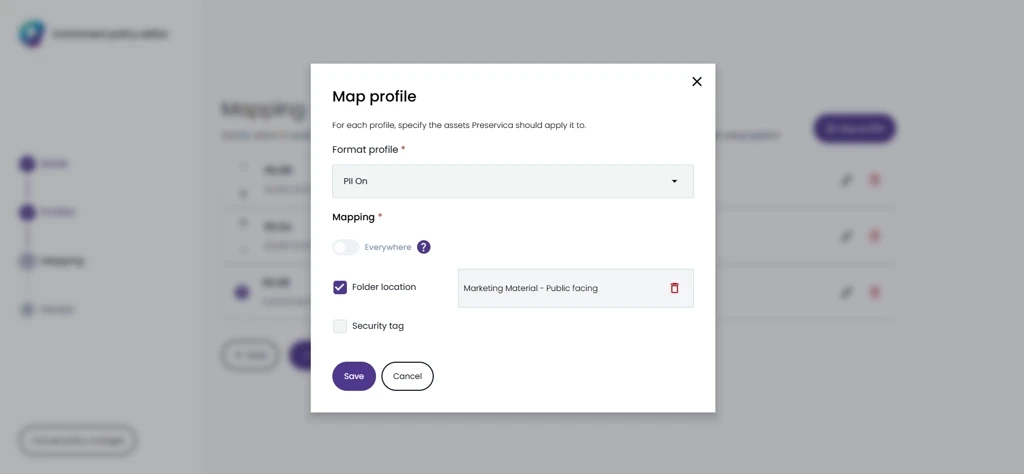
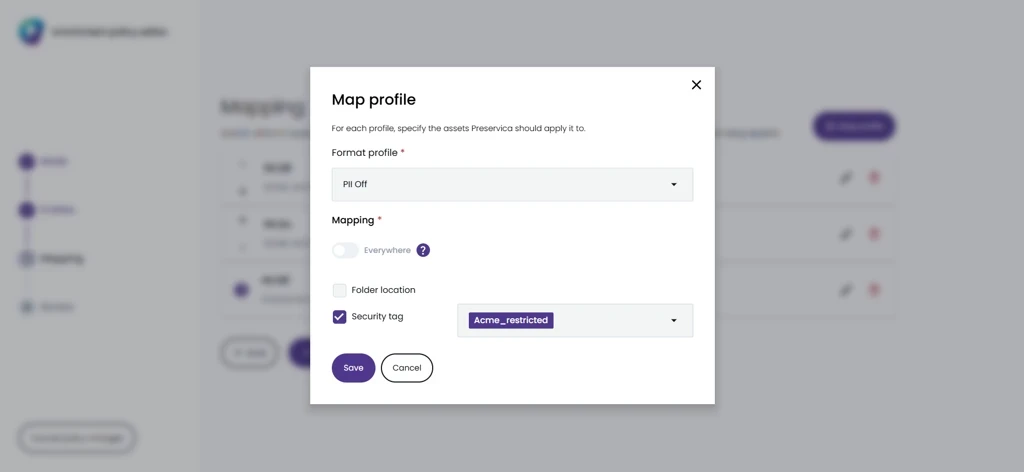
If you have multiple profiles and therefore multiple mappings, you can choose the order in which they are run.
Step 1.4 Apply policy
Apply the policy for it to take effect starting with your next ingest.
Step 2: Check for PII on ingest
When you ingest content into the folder location(s) or with security tags that should be checked for PII as instructed by your Enrichment policy, then this will be done as part of our secondary, post-ingest tasks. Preservica will check the full text index of the ingested content and any PII found will be applied to that content within a separate ‘PII Analysis’ schema in the following format:
Overall confidence - meaning the overall confidence that this content contains PII based on all the pieces of text that were found and deemed to be PII.
Each piece of text deemed to be PII will be shown in the order of likelihood that it is PII (confidence) and it will include further information in the following format:
-
Confidence - meaning the likelihood that this particular piece of text is indeed PII based on how well it matches the criteria for a particular PII category
-
Offset - meaning the number of characters into the full text index where this text was found
-
Type - the PII category that this text matches
-
Text - meaning the actual piece of text deemed to be PII
Step 3: Find assets where PII was detected
Within NewGen, navigate to Advanced search and use the PII likelihood or Item Summary filter to find content with PII.
Check for PII on already ingested content
If you are on a private cloud edition, you also have the ability to check for PII on content that is already ingested into the archive.
To do this, you first need to check your Enrichment policy to make sure that it is mapped to the ingested content you want checked. You can then find that content in Explorer or Search, right-click on it and select ‘Re-evaluate policy’. A modal will open allowing you to choose ‘Enrichment policy’ as the policy that this content should be checked against.
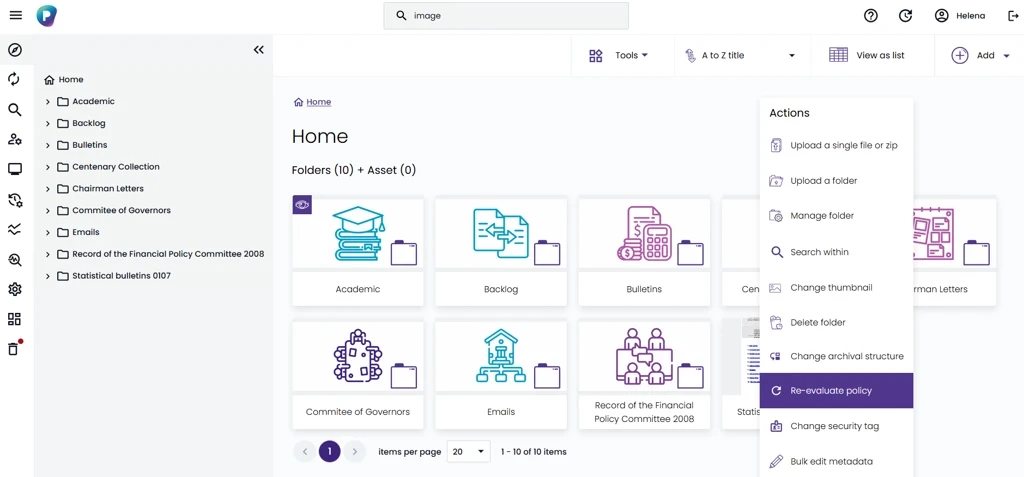
When right-clicking on content in Explorer or Search, the ‘Re-evaluate policy’ option becomes available.
The system will then apply this policy to the selected content in the background. You can also check the Process Monitor for status of the enrichment policy re-evaluation and the results.
Audit trail
Asset level
All assets that were checked for PII will have an event recorded in their Event history, accessible via API and the ‘History’ tab in the Classic interface, available from the Properties of each entity. This is logged as event type “MetadataEnrichment (PIIDetection)”. Event history is also accessible within the NewGen interface, under “History of asset”, though this doesn’t allow you to view the XML, only the event name.
PII detection is also reported on within the Process Monitor in the New Generation interface.
System-wide
We log when changes are made to the Enrichment policy, which controls how PII and other AI features are applied to your content. This log is currently only available via API however, we are working on adding this to the New Generation interface as well.
Good to know
-
The tool we use to detect PII is called Microsoft Presidio. You can read more about it here: presidio/docs/faq.md at main · microsoft/presidio · GitHub. This is embedded within Preservica’s code and architecture so your data never leaves the system.
-
The “PII Analysis” metadata is not editable currently and we are working on fixing that for an upcoming release. You can delete the fragment completely, just not edit its values. Please bear this in mind when deciding which assets you test this with. We advise against using this with any assets currently displayed on your Portal (if you are using Portal) given that you don’t yet have the ability to restrict which metadata schemas and fields should be visible on Portal.
-
PII detection can work alongside OCR by extracting any PII located within a text-based image file (TIFF/EXIF/JPEG2000/PDF), providing the OCR profile is applied before the PII one.