


This article is applicable to the New Generation Interface and all Preservica editions. Starter edition users can use the standard CSV metadata templates, Professional and above can use both standard and custom CSV metadata templates
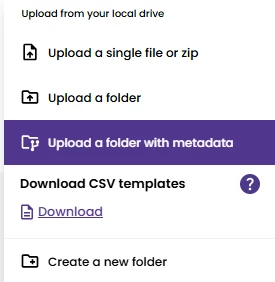
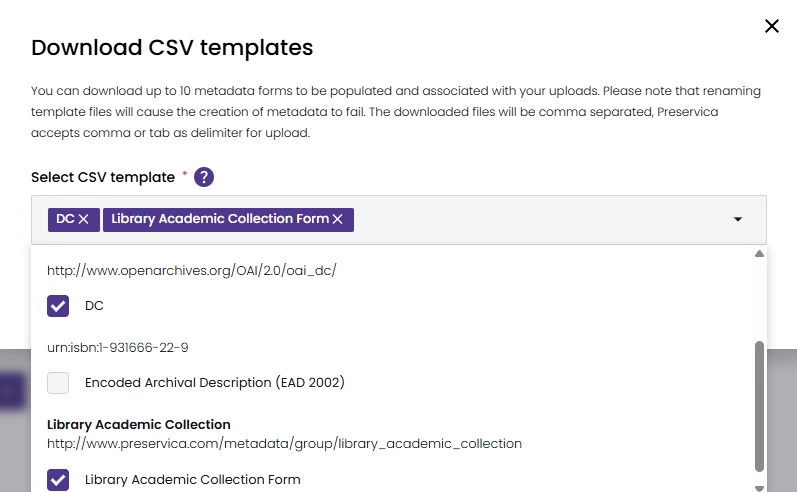
In the NewGen interface under the Add menu (below) there is an option to upload a folder that contains content files and a single CSV file that contains metadata to be applied to that content.

The use of this functionality is covered in this Training Video and here are some things to be aware of when using it:
- When saving the CSV in your spreadsheet prior to uploading ensure it is saved in CSV UTF-8 format
- The folder/filename column in the CSV is the first column within the CSV. It must contain the exact name, including extension, of the file it is associated with.
- To ensure dates are indexed correctly we recommend using the ISO date format of yyyy-mm-dd
- Please note that the exceptions later about \ & ; do NOT apply here, no “” or \\ are required for this column for file names.
- Folder names in Bulk Upload cannot contain any spaces, our advice would be to replace any spaces with underscores and then modify the folder name in the system once it has been uploaded. This can be done by right clicking on the folder and selecting Manage Folder. This restriction does not affect content files
- Semi-colons (;) are use by the CSV upload system to indicate multiple values for a field e.g. value1;value2 would place 2 entries of the metadata field against the relevant asset, one of value1 and the other value2.
- If you wish to use semi-colons within a metadata entry, you will need to triple double quote the entire entry. e.g. """It was the best of times; it was the worst of times."""
- Be aware products like Excel & Libre Office may convert a single set of double quotes into triples automatically on saving a CSV and only require single double quotes entered on screen. If in doubt, please load the CSV into a program like Notepad/Notepad++ to check.
- Backslashes in metadata must be doubled to enter the system correctly. This can be done from programs like Excel/Libre Calc using the find & replace system to replace \ with \\. e.g. DirectoryStructure\\AssetName